After signing in to the Sparse Agent workspace, open Settings to find Model, Cloud key, Cloud environment and Cloud memory. The model handles tasks, the cloud key lets the platform manage a machine in your DigitalOcean account, the environment is the computer where the Agent works, and cloud memory retains preferences and project lessons.
A configured model, cloud key and available environment are the essentials for running tasks. Cloud memory can be connected after basic setup and is recommended for ongoing work. Your model and cloud machine use your own provider accounts, with charges settled by those providers under your account terms.
| Setting | What you configure | What it enables |
|---|---|---|
| Model | A DeepSeek or OpenRouter API key | Understanding instructions and carrying out tasks |
| Cloud key | A DigitalOcean API token | Creating and cleaning up your cloud machine |
| Cloud environment | An available cloud computer | Running the Agent and its browser |
| Cloud memory | Authorization from the current Chat account | Using saved information in later tasks |
Model: choose a provider and save its key
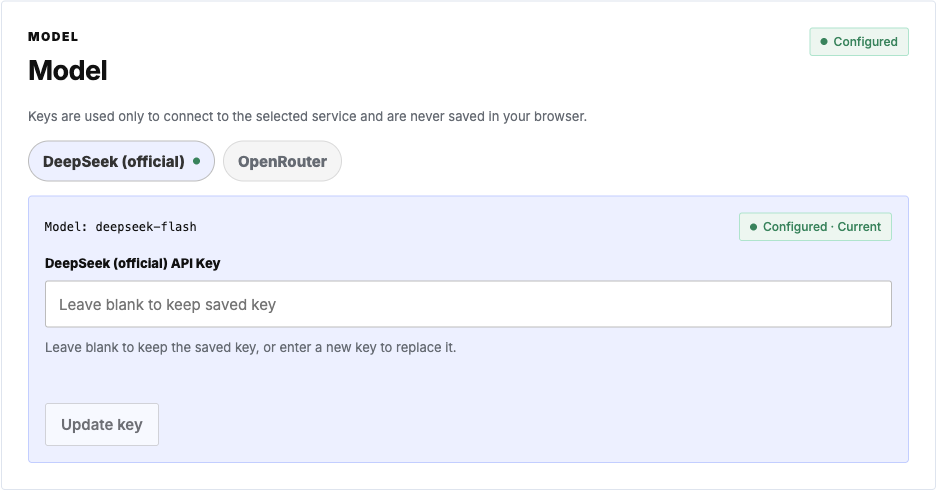
The Model page currently offers DeepSeek (official) and OpenRouter. Register with your chosen provider, complete its payment or credit requirements, and create an API key in its control panel. Return to Sparse Agent, select the matching provider, enter the key and save.
The DeepSeek option currently uses deepseek-flash; the OpenRouter option uses deepseek/deepseek-v4.1-flash. Match the selection to the account that issued your key.
Once the page shows Configured, continue with cloud setup. The key connects to the chosen service and is stored encrypted on the server. Leaving the field empty keeps the saved key; entering a new value updates it. Model usage is charged to your account by the selected provider.
Cloud key: register with DigitalOcean and create a token
The cloud computer is created in your own DigitalOcean account. Cloud key accepts a DigitalOcean Personal Access Token, which the platform uses to create and clean up that computer. Complete these steps:
- Register an account. Open DigitalOcean, register and verify your email.
- Enable billing. In DigitalOcean's Billing page, add a payment method supported for your account and region. Complete any requested deposit or payment verification, and confirm that the account can create cloud machines.
- Generate a token. In the control panel, open Account → API → Tokens and choose Generate New Token. Enter a name and expiry, then select Full Access, which includes the read and write permissions needed to create and delete machines. Save the generated value immediately: the complete token is displayed once. See DigitalOcean's token instructions.
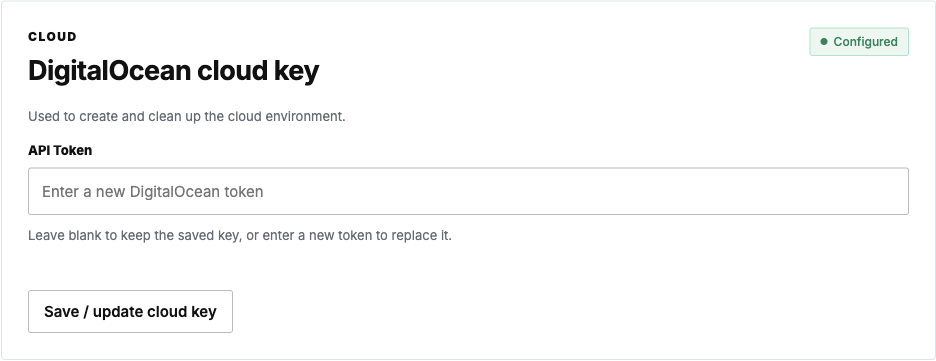
- Save it in Sparse Agent. Open Settings → Cloud key, paste the token, save and confirm the Configured status.
DigitalOcean stays the default, and the steps above are unchanged. For Alibaba Cloud ECS or private Kubernetes, open More configuration on the same page and choose that environment. Private Kubernetes needs a container image reference; Gateway deploys it to your cluster. Those costs follow the Alibaba Cloud account or the cluster, and the workspace shows the cost as unknown rather than a DigitalOcean balance or budget. An existing environment cannot change type, and deleting an environment removes that environment's data.
Custom scopes must cover reading the balance, managing machines and the required image, size, region, tag and SSH-key operations. Saving a token checks that it can read the DigitalOcean account balance; creating a machine also needs the relevant resource permissions. A saved token and a created cloud machine are separate states.
To replace the token, delete the original environment first so its machine can be cleaned up, then save the new token. Enter model keys and cloud tokens only in their respective settings fields.
Cloud environment: create the computer where the Agent works
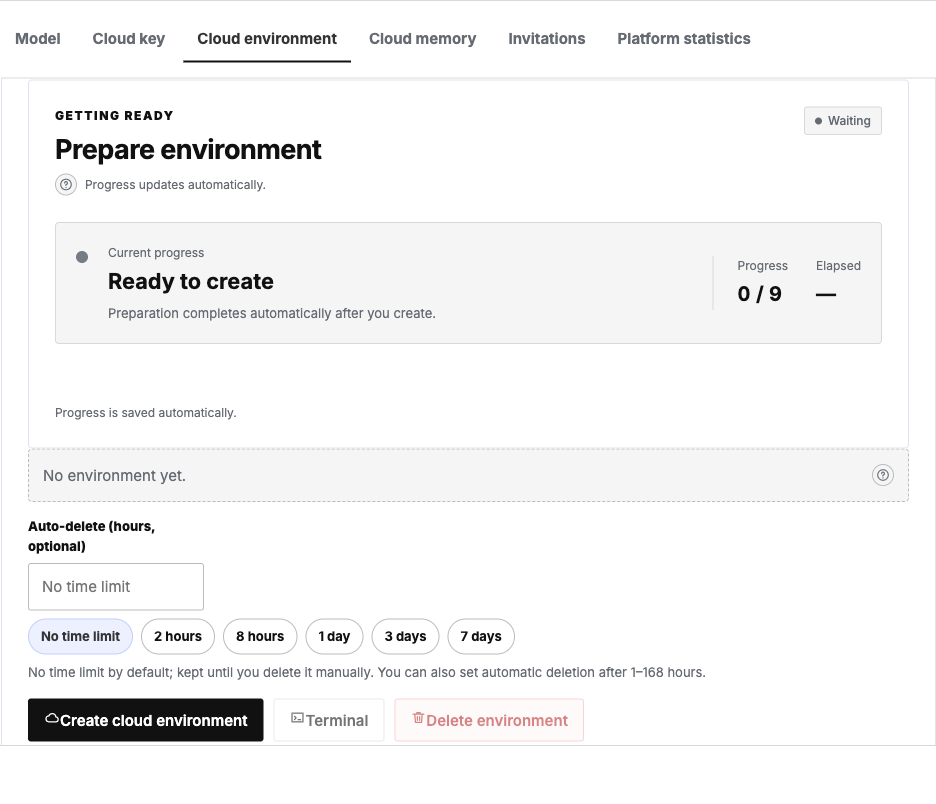
After saving the model and cloud key, select Create cloud environment on the environment page. Creation uses DigitalOcean unless More configuration already selects another type. Sparse Agent creates a virtual machine in your DigitalOcean account and installs what the Agent and browser need. You can also enter a goal in the New Agent form and create the environment as part of that flow.
Preparation takes time, and the page shows each step. Start tasks once the environment is ready. If preparation fails, read the page's explanation and check the model configuration, cloud account and token permissions.
New environments have no time limit by default and remain until you delete them. For a shorter run, set automatic deletion after 1–168 hours at creation. Several Agents can share one computer; each Sparse Agent account can manage at most one environment at a time.
The computer incurs DigitalOcean charges. Its current billing documentation states that bundled CPU plans are billed per second, with a minimum charge and a monthly plan cap. Powered-off machines continue to incur charges; destroying the machine ends its billing. Check your DigitalOcean account for the actual specifications, price and any other resource charges. When finished, delete the environment in Sparse Agent and confirm that deletion completes.
Why DigitalOcean
The computer runs Omarchy, initiated by David Heinemeier Hansson (DHH), the creator of Ruby on Rails. It combines Arch Linux and the Hyprland desktop into a Linux environment where developers and Agents can start working.
DigitalOcean provides cloud compute support for Omarchy and offers an Omarchy 1-Click image in its Marketplace. Sparse Agent uses this image to prepare the computer needed for browser work and other tasks. The relationship is described in Omarchy's official announcement.
DigitalOcean also exposes APIs for creating, inspecting and deleting virtual machines, allowing the platform to automate setup. Register and enable billing on your own account, save the token, then create an environment in Sparse Agent. The machine remains in your account, where you can inspect its bill directly.
Cloud memory: connect an account and retain useful experience
Cloud memory stores preferences, project conventions and confirmed decisions. For example, tell the Agent to write future reports in Chinese, then ask it to retrieve and apply that preference in a later task.
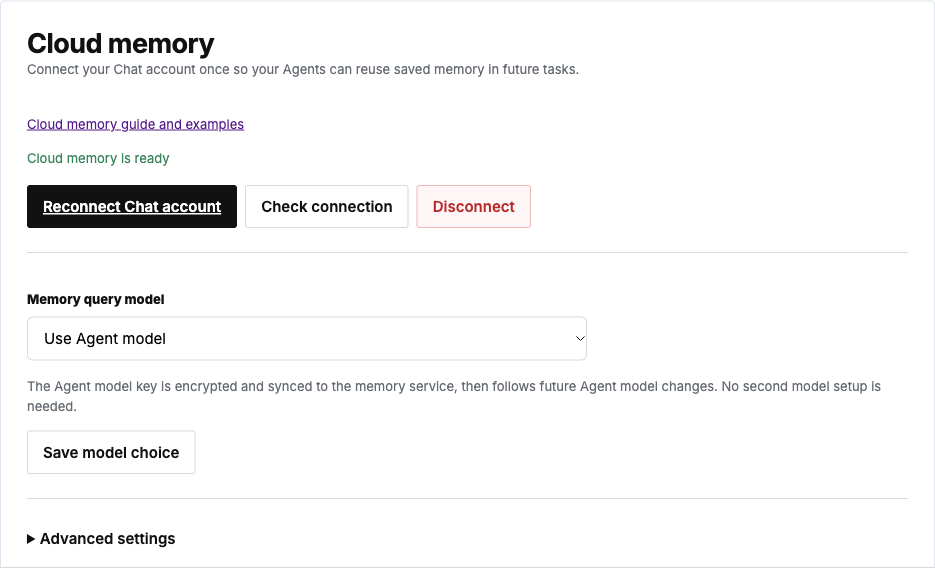
Open Settings → Cloud memory and choose Connect Chat account. Authorize using the Auto-Coder Chat account associated with the current workspace. The normal connection flow does not require copying a Chat API key. Authorization renews automatically, and the page shows the connection status.
The Memory query model offers three choices: Automatic keeps existing cloud settings first; Use Agent model reuses the current model configuration; Keep separate cloud model retains a model configured independently in the memory service. Start with Automatic and adjust it when needed.
Each Agent has its own memory space. To copy existing local memories to the cloud, select Migrate existing memory and review its progress. Local records remain, and migration avoids duplicate entries. Disconnecting retains the records already stored in the cloud. When creating a new Agent, retrieve or migrate previous records as needed and save important deliverable files separately.
After setup, create your first goal
Confirm that the model and cloud key are configured and an environment is available, then return to the workspace and select New Agent. Enter a name and Goal, adding KPI and Constraints as needed. Begin with a bounded task and inspect the reply and actual result.
Read the Sparse Agent user guide for writing a goal, reviewing progress and helping with browser sign-ins. The cloud memory guide covers querying, updating and backing up memories. Expand the work gradually from a task whose result you can check.